
How to scan documents to PDF on iPhone
Contracts, receipts, school forms, handwritten notes — your iPhone camera can turn them into a clean, multi-page PDF in seconds. Fileroom's scanner finds the page edges, straightens the perspective and saves the PDF to your library, without uploading anything.
Free to download — no account, no uploads.
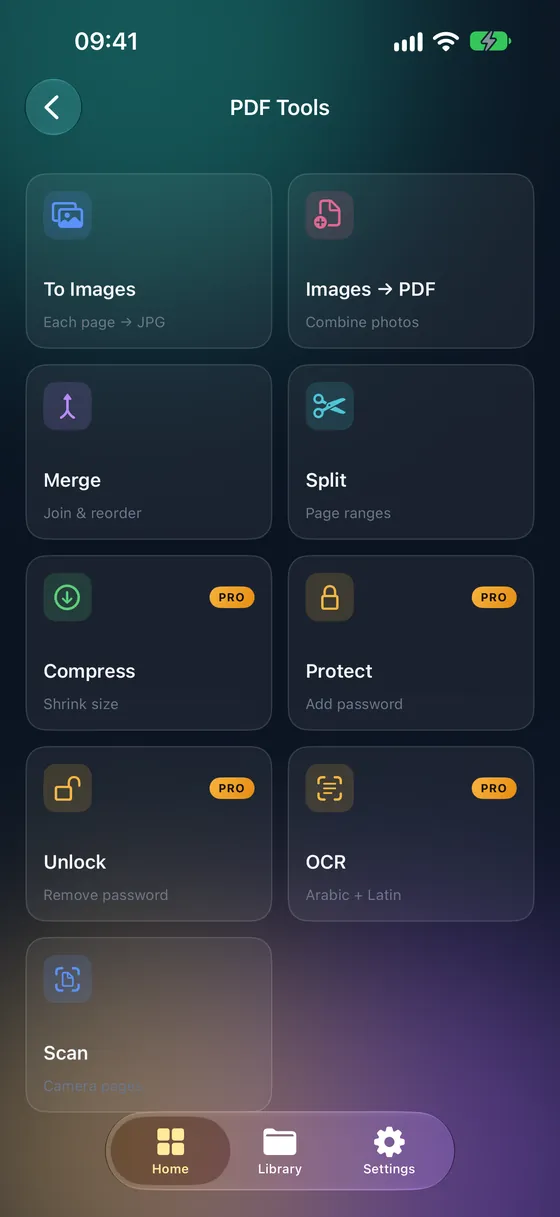
Step by step
- 01
Open the scanner
Open Fileroom and go to PDF tools › Scan documents.
- 02
Scan each page
Hold your iPhone over the page. Fileroom detects the edges and captures it — keep going for as many pages as you need.
- 03
Check and adjust
Review the pages and adjust any corners that weren't detected perfectly.
- 04
Save the PDF
Tap Save. The multi-page PDF lands in your library, ready to share, email or upload.
Tips
- Scan on a dark, flat surface — contrast helps edge detection.
- Use daylight or even room light and avoid shadows from your phone.
- Scan every page of a document in one session to get a single PDF.
- Run OCR afterwards to make the scan searchable (Fileroom Pro).
Frequently asked
- Is the document scanner free?
- Yes. Scanning to PDF is included in the free version of Fileroom.
- Are my scans uploaded anywhere?
- No. Scanning and PDF creation happen entirely on your iPhone — it even works in airplane mode.
- Can I make the scanned text searchable?
- Yes — run PDF tools › OCR (searchable PDF) on the scan. OCR is part of Fileroom Pro and supports English, Arabic, French, Spanish and German.
More guides
Related conversions
Try Fileroom on your iPhone.
iPhone and iPad on the App Store — every format pair, all on-device. Android coming soon.
Want new features early? Join the TestFlight beta