
How to make a scanned PDF searchable on iPhone
A scanned PDF is just a picture of text — you can't search it, select it or copy from it. OCR (optical character recognition) fixes that by adding an invisible text layer. Fileroom runs OCR on your iPhone, so confidential scans never go to a cloud service.
Included in Fileroom Pro — Lifetime or subscription.
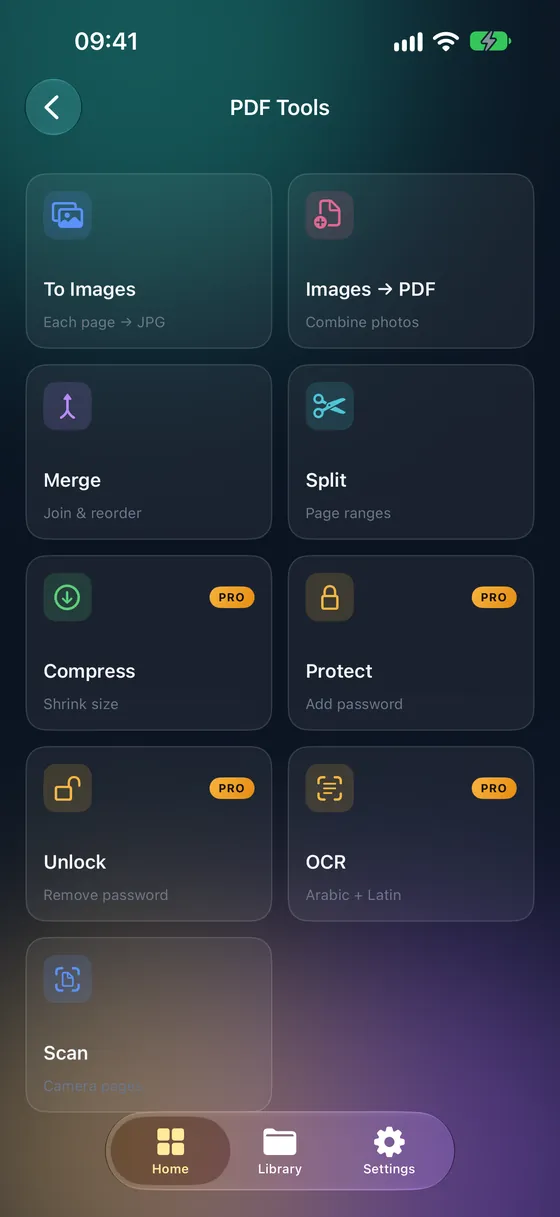
Step by step
- 01
Open the OCR tool
Open Fileroom and go to PDF tools › OCR (searchable PDF).
- 02
Choose the PDF
Pick the scanned PDF from your library, Files or iCloud Drive.
- 03
Pick the language
Choose the document's language — English, Arabic, French, Spanish or German.
- 04
Run OCR
Tap the button to start. Fileroom saves a searchable copy of the PDF to your library; the original stays untouched.
Tips
- Sharper, straighter scans give more accurate text recognition.
- Pick the language the document is actually written in.
- The page still looks exactly the same — the text layer is invisible.
- Search the result in Files, Preview or any PDF reader.
Frequently asked
- Does Fileroom's OCR work with Arabic?
- Yes. Arabic is one of the supported OCR languages, along with English, French, Spanish and German.
- Is OCR free?
- OCR is part of Fileroom Pro, available as a one-time Lifetime purchase or a subscription.
- Is my document sent to a server for OCR?
- No. Text recognition runs on your iPhone's own hardware. Nothing is uploaded.
More guides
Related conversions
Try Fileroom on your iPhone.
iPhone and iPad on the App Store — every format pair, all on-device. Android coming soon.
Want new features early? Join the TestFlight beta