
PDF · On-device
Images to PDFon iPhone and iPad.
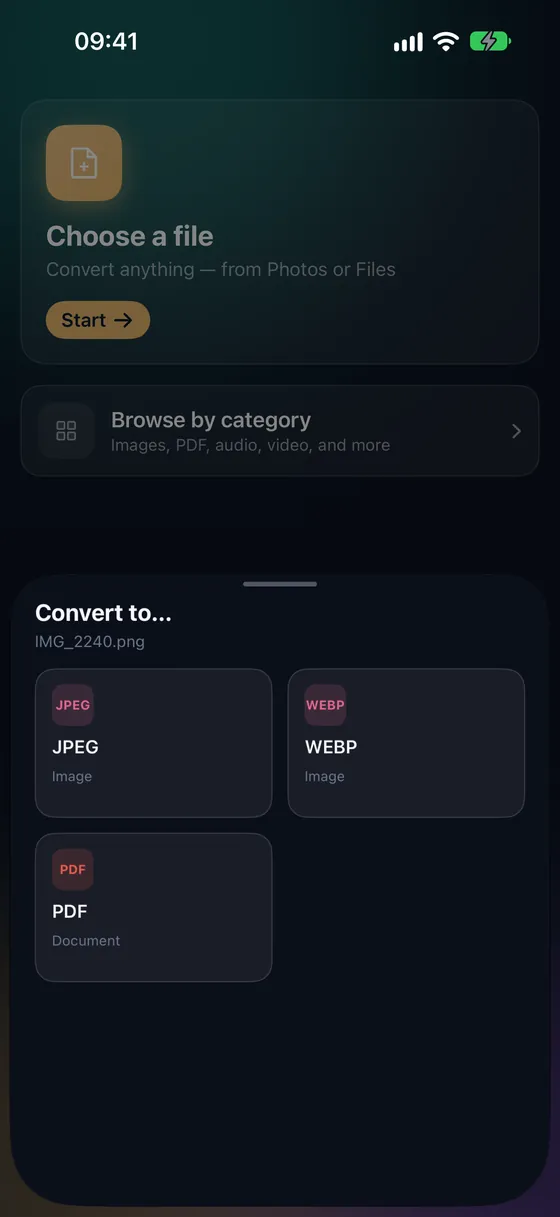
Receipts, ID photos, whiteboard shots, screenshots — forms and portals want them as a single PDF. Fileroom builds it on your phone, in the order you choose, with nothing uploaded.
Free to download — no account, no uploads.
Why convert Images to PDF?
- One file is easier to attach than a stack of photos.
- Pages stay in the order you set.
- Choose a page size — Auto, A4 or Letter — for printing or forms.
- IDs, receipts and forms never reach a server.
How to convert Images to PDF
- 01
Open Images to PDF
Go to PDF tools › Images to PDF and pick your photos from Photos or Files.
- 02
Set the order
Arrange the pages in the order you want.
- 03
Choose a page size and save
Auto keeps each image's shape; A4 and Letter fit standard paper. The PDF is saved to your library.
Frequently asked
- Can I mix HEIC, JPEG and PNG?
- Yes — Fileroom combines them all into one PDF at their original resolution.
- How do I scan paper documents instead?
- Use PDF tools › Scan documents. Fileroom finds the edges, fixes the perspective and creates the PDF in one go.
- Will the PDF be large?
- Full-resolution photos make big PDFs. Use Compress PDF (Fileroom Pro) afterwards to shrink it.
Related conversions
Now on the Mac App Store
Fileroom, on your Mac.
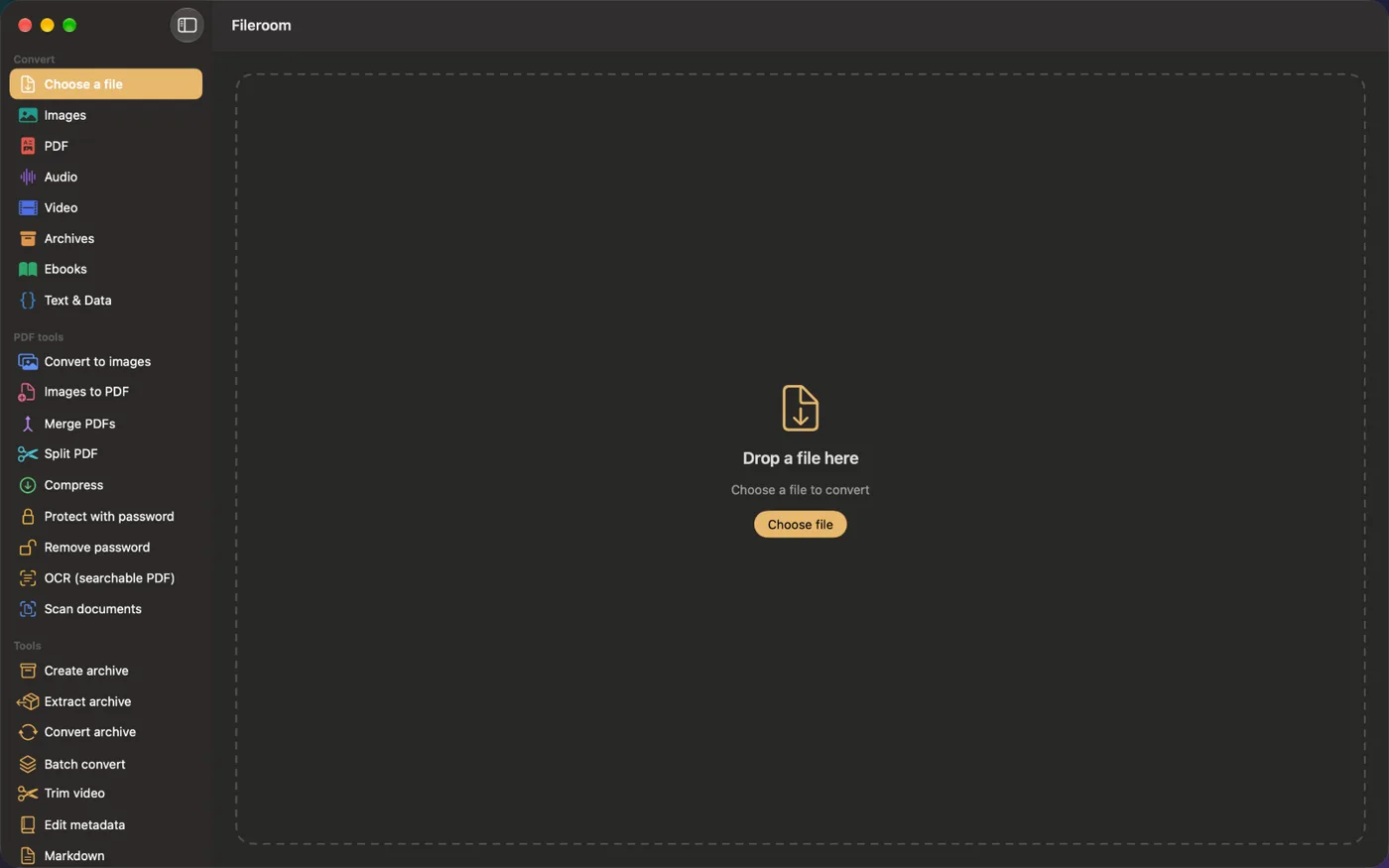
A native Mac app with every converter and PDF tool — drag files onto the window, batch whole folders, or convert right from Finder.
- Drag & drop onto the window
- Finder Quick Action
- One purchase for iPhone, iPad and Mac
Try Fileroom on your iPhone.
iPhone, iPad and Mac on the App Store — every format pair, all on-device. Android coming soon.
Want new features early? Join the TestFlight beta