
How-to guide · On-device
How to merge PDF files on iPhone
Application packs, invoices, chapters, signed pages — often you need several PDFs as one file. Fileroom merges PDFs on your iPhone in the order you choose, without handing your documents to a website.
Included in Fileroom Pro — Lifetime or subscription.
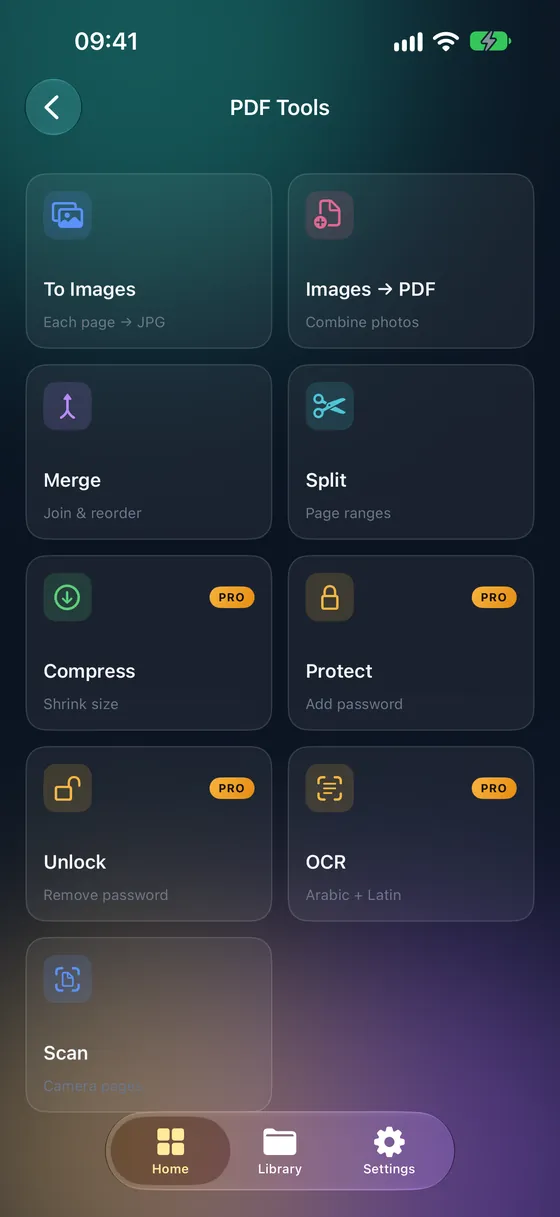
Step by step
- 01
Open Merge PDFs
Open Fileroom and go to PDF tools › Merge PDFs.
- 02
Add the PDFs
Pick the files you want to combine from your library, Files or iCloud Drive.
- 03
Set the order
Drag the files into the order they should appear in the final document.
- 04
Merge
Tap Merge. The combined PDF is saved to your library.
Tips
- Put the cover page or form first — reviewers read top to bottom.
- Scan paper pages to PDF first, then merge them with digital files.
- Compress the merged file if an upload form has a size limit.
- The original PDFs stay unchanged.
Frequently asked
- Is merging PDFs free?
- Merging is part of Fileroom Pro (Lifetime or subscription).
- Can I merge photos and PDFs together?
- Turn the photos into a PDF first with PDF tools › Images to PDF, then merge it with your other PDFs.
- Are the PDFs uploaded?
- No. Merging happens on your device.
More guides
Related conversions
Try Fileroom on your iPhone.
iPhone and iPad on the App Store — every format pair, all on-device. Android coming soon.
Want new features early? Join the TestFlight beta