
How-to guide · On-device
How to create a password-protected ZIP on iPhone
When you send tax documents, ID scans or client files, a password-protected ZIP keeps them private even if the email is forwarded. Fileroom creates AES-256 encrypted ZIP archives right on your iPhone.
Included in Fileroom Pro — Lifetime or subscription.
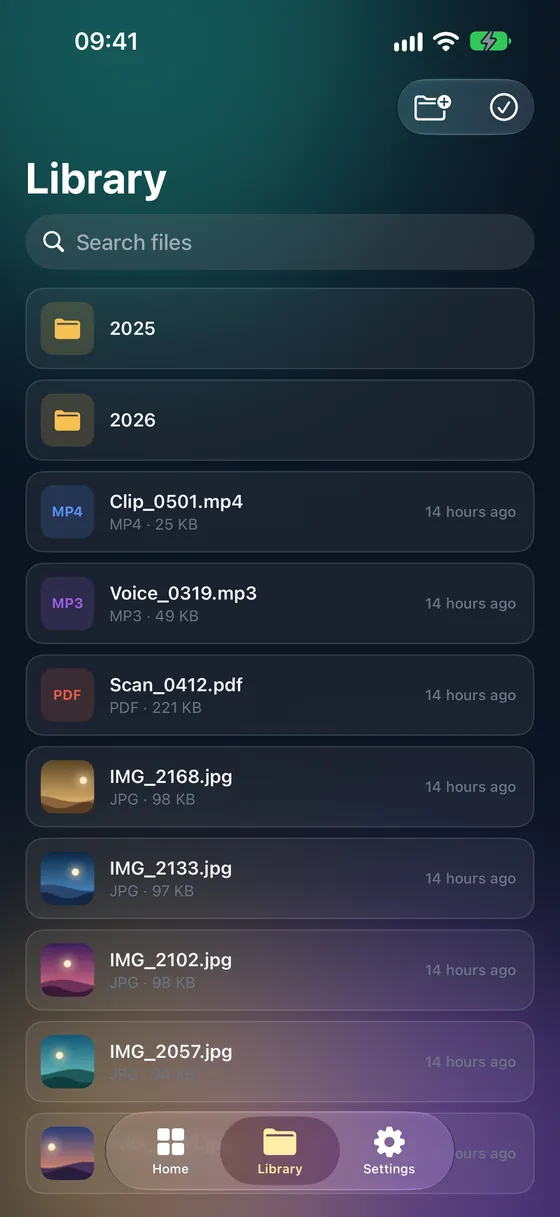
Step by step
- 01
Open Create archive
Open Fileroom, tap Archives and choose Create archive.
- 02
Add files
Pick the files to include from your library, Photos or Files.
- 03
Choose ZIP and set a password
Select ZIP as the format, turn on the password option and type a strong password.
- 04
Create and share
Tap Create. The encrypted ZIP is saved to your library, ready to share.
Tips
- Send the password separately — by message or phone, not in the same email.
- AES-256 is strong encryption; a long password makes it effective.
- Recipients can open it with 7-Zip, WinRAR, Keka or Fileroom.
- Some built-in unzip tools don't support AES encryption — suggest 7-Zip if someone gets stuck.
Frequently asked
- Is creating password-protected ZIPs free?
- Creating plain ZIP archives is free. AES-256 encrypted archives are part of Fileroom Pro (Lifetime or subscription).
- Can I add a password to a 7Z or TAR?
- Password protection is available for ZIP archives.
- What if I forget the password?
- An AES-256 encrypted ZIP can't be opened without it. Keep the password somewhere safe.
More guides
Related conversions
Try Fileroom on your iPhone.
iPhone and iPad on the App Store — every format pair, all on-device. Android coming soon.
Want new features early? Join the TestFlight beta