
How-to guide · On-device
How to open 7Z files on iPhone
7Z archives from 7-Zip compress very well, but iPhone's Files app can't open them. Fileroom extracts 7Z on your device — and can create 7Z, ZIP and TAR archives too.
Free to download — no account, no uploads.
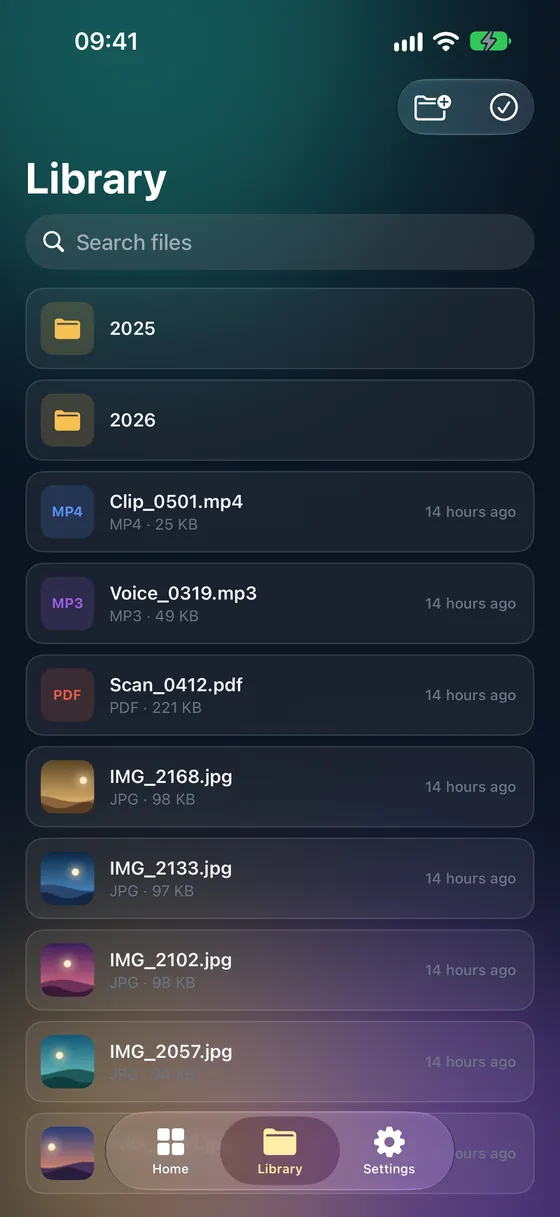
Step by step
- 01
Open Extract archive
Open Fileroom, tap Archives and choose Extract archive.
- 02
Choose the 7Z
Pick the .7z file from Files or iCloud Drive, or share it into Fileroom from another app.
- 03
Extract
Tap Extract. The contents are saved to your library.
Tips
- 7Z is usually smaller than ZIP for the same files.
- To send files back as 7Z, use Archives › Create archive and pick 7Z.
- Convert a 7Z to ZIP with Archives › Convert archive for people without 7-Zip.
- Extraction runs on your device — nothing is uploaded.
Frequently asked
- Is opening 7Z files free?
- Yes. Extracting archives is included in the free version of Fileroom.
- Which other archive formats does Fileroom open?
- ZIP, TAR (including .tar.gz and .tar.bz2), GZ, BZ2, 7Z and RAR.
More guides
Related conversions
Try Fileroom on your iPhone.
iPhone and iPad on the App Store — every format pair, all on-device. Android coming soon.
Want new features early? Join the TestFlight beta