
How-to guide · On-device
How to open RAR files on iPhone
The Files app opens ZIP files, but not RAR. Fileroom extracts RAR archives right on your iPhone, so you can get to the photos, documents or videos inside — without uploading the archive to an online unzip site.
Free to download — no account, no uploads.
Step by step
- 01
Open Extract archive
Open Fileroom, tap Archives and choose Extract archive.
- 02
Choose the RAR
Pick the .rar file from Files, iCloud Drive or a download — or share it to Fileroom from Mail or Safari.
- 03
Extract
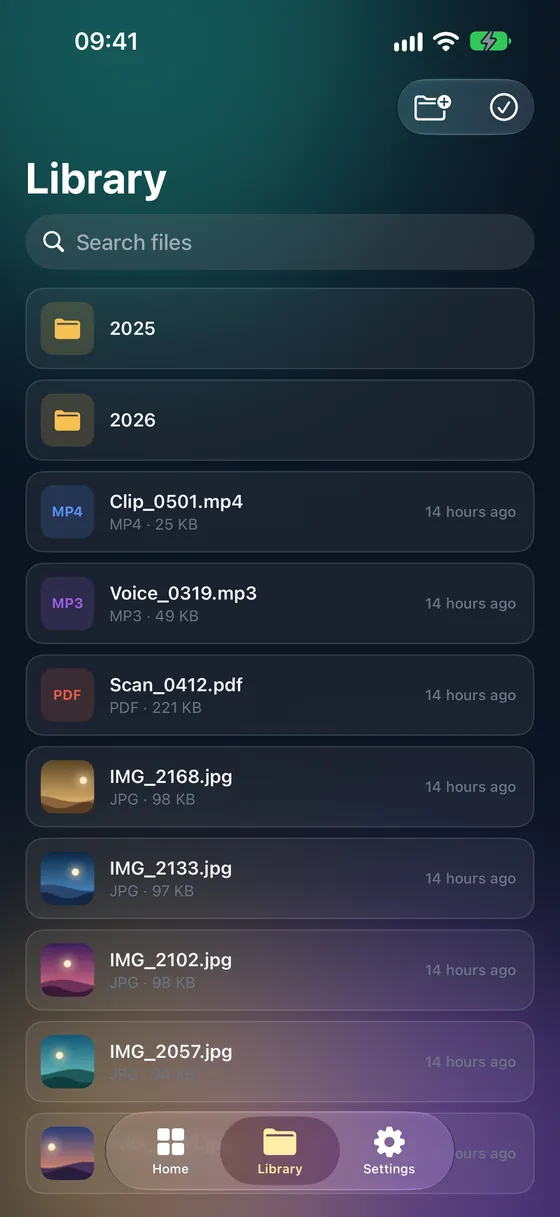
Tap Extract. The files inside are saved to your library.
- 04
Use the files
Open, share or convert them — for example MKV to MP4 or HEIC to JPEG.
Tips
- Share a RAR from Mail, Safari or a chat app straight into Fileroom.
- Convert the archive to ZIP with Archives › Convert archive if you need to send it on.
- Extracted files show up in the Files app too.
- Nothing is uploaded — useful for private archives.
Frequently asked
- Why can't my iPhone open RAR files?
- Apple's Files app only supports ZIP archives. RAR needs a separate app like Fileroom.
- Is extracting RAR free?
- Yes. Extracting archives is included in the free version of Fileroom.
- Can Fileroom create RAR files?
- No — RAR is a proprietary format that can only be read. Fileroom can create ZIP, 7Z and TAR archives instead.
More guides
Related conversions
Try Fileroom on your iPhone.
iPhone and iPad on the App Store — every format pair, all on-device. Android coming soon.
Want new features early? Join the TestFlight beta