
How-to guide · On-device
How to password-protect a PDF on iPhone
Payslips, medical records, contracts, IDs — some documents shouldn't travel unprotected. Fileroom adds a password to a PDF on your iPhone, so it can only be opened by someone who knows it.
Included in Fileroom Pro — Lifetime or subscription.
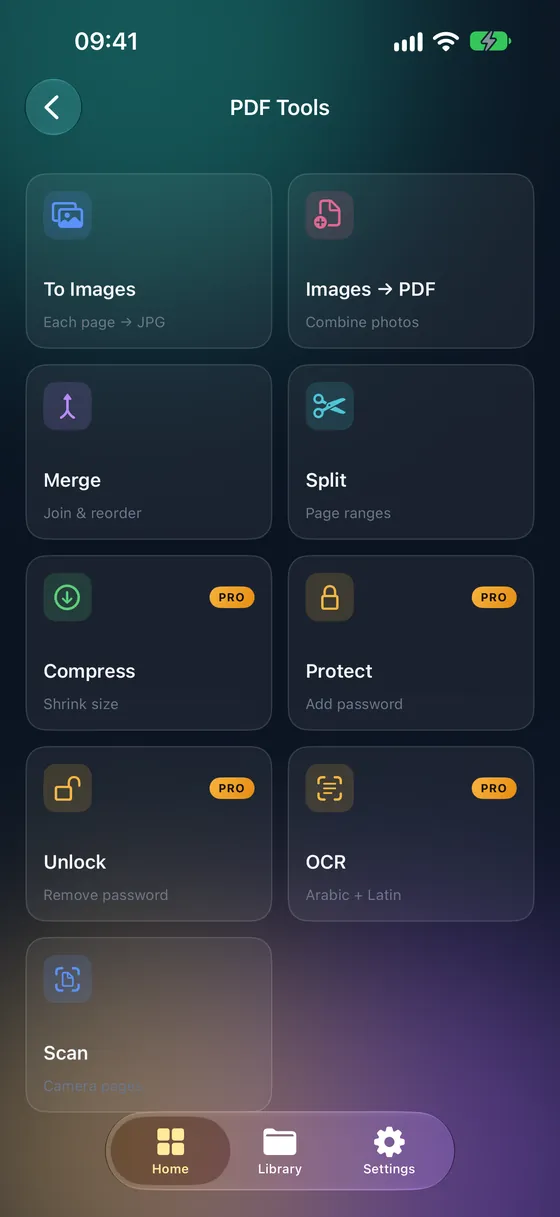
Step by step
- 01
Open Protect with password
Open Fileroom and go to PDF tools › Protect with password.
- 02
Choose the PDF
Pick the document from your library, Files or iCloud Drive.
- 03
Set the password
Type a strong password you'll remember — Fileroom can't recover it for you.
- 04
Save
Tap Protect. A password-protected copy is saved to your library.
Tips
- Send the password through a different channel than the file.
- Use a long password — a short phrase is easier to remember and harder to guess.
- Keep the unprotected original somewhere safe, or delete it.
- Every PDF reader will ask for the password before opening.
Frequently asked
- Is this feature free?
- Password protection is part of Fileroom Pro (Lifetime or subscription).
- What if I forget the password?
- It can't be recovered — not by Fileroom or anyone else. Keep a copy of the password somewhere safe.
- Can I remove the password later?
- Yes — use PDF tools › Remove password with the password you set.
More guides
Related conversions
Try Fileroom on your iPhone.
iPhone and iPad on the App Store — every format pair, all on-device. Android coming soon.
Want new features early? Join the TestFlight beta