
How-to guide · On-device
How to remove a password from a PDF on iPhone
Bank statements and utility bills often arrive password-protected. If you know the password, Fileroom can save an unlocked copy on your iPhone — so you can open, merge or print it without typing the password again.
Included in Fileroom Pro — Lifetime or subscription.
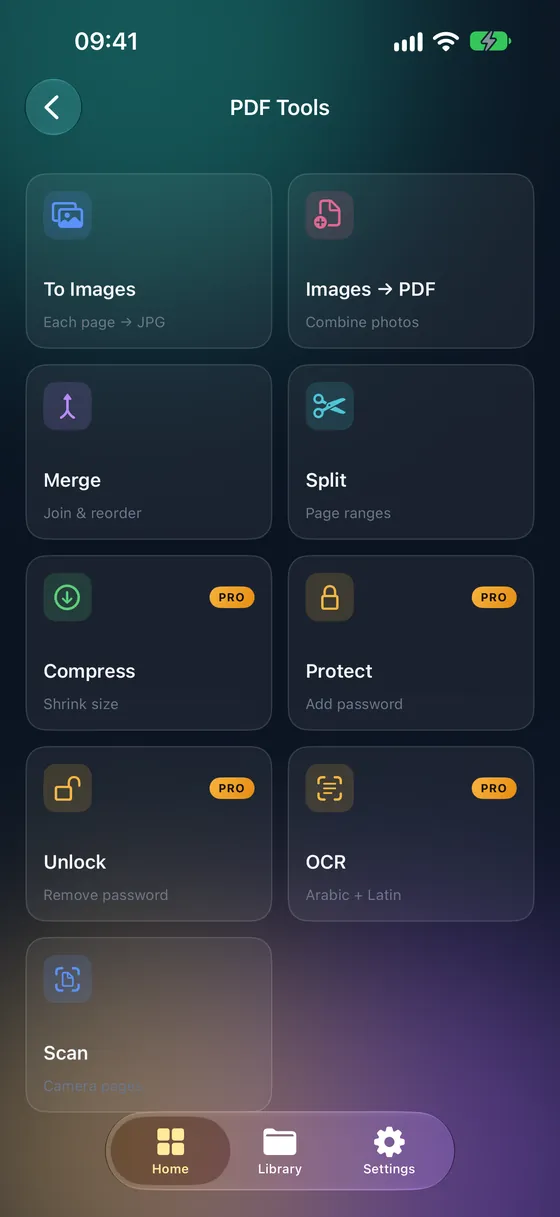
Step by step
- 01
Open Remove password
Open Fileroom and go to PDF tools › Remove password.
- 02
Choose the PDF
Pick the protected document.
- 03
Enter the password
Type the PDF's current password.
- 04
Save the unlocked copy
Fileroom saves a copy without a password to your library.
Tips
- Unlock first, then merge, split or compress the PDF.
- Keep unlocked copies of sensitive documents in a private folder.
- The original protected PDF is left as it is.
Frequently asked
- Can Fileroom unlock a PDF without the password?
- No. You need the current password — Fileroom doesn't crack or bypass PDF passwords.
- Is this feature free?
- Removing passwords is part of Fileroom Pro (Lifetime or subscription).
More guides
Related conversions
Try Fileroom on your iPhone.
iPhone and iPad on the App Store — every format pair, all on-device. Android coming soon.
Want new features early? Join the TestFlight beta