
PDF · On-device
PDF to JPEGon iPhone and iPad.
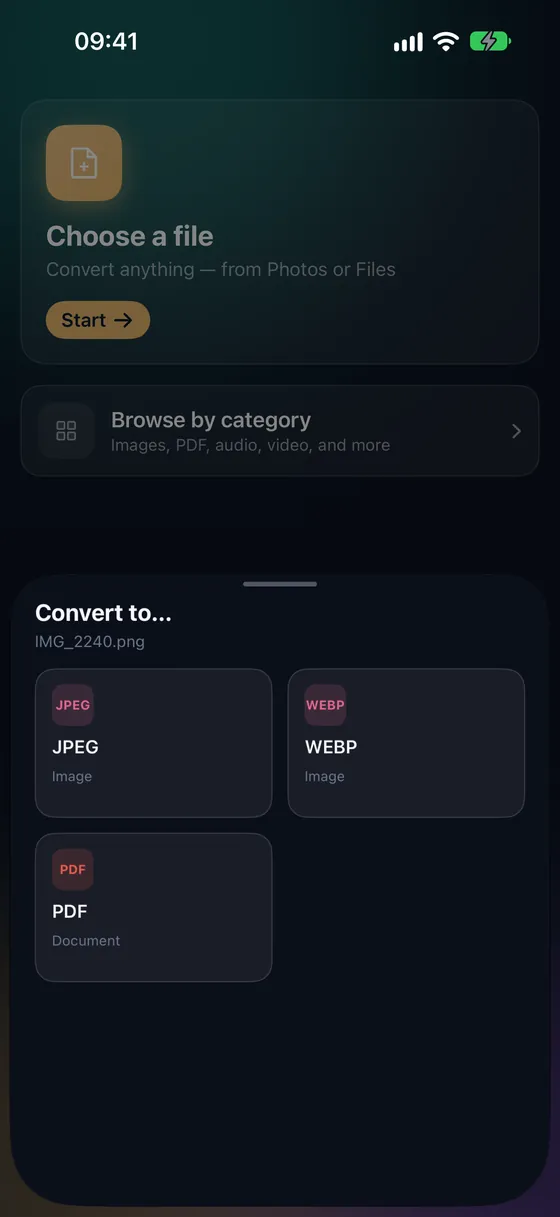
Need a PDF page as a picture — for a chat, a social post, a slide or a form that only takes images? Fileroom turns every page of a PDF into a JPEG on your phone, without sending the document anywhere.
Free to download — no account, no uploads.
Why convert PDF to JPEG?
- Share a single page in chat apps and social media.
- Drop pages into slides, notes and image editors.
- Upload to forms that only accept images.
- Contracts and statements never leave your device.
How to convert PDF to JPEG
- 01
Choose the PDF
Open Fileroom, tap Choose a file and pick the PDF — or go to PDF tools › Convert to images.
- 02
Tap JPEG
Pick JPEG. Each page becomes its own image, rendered at high resolution so text stays readable.
- 03
Save or share
The images are saved to your library. Share them, or save them to Photos.
Frequently asked
- Does every page become an image?
- Yes — Fileroom writes one JPEG per page, numbered in page order.
- Can I convert a password-protected PDF?
- Unlock it first with PDF tools › Remove password (Fileroom Pro), using the password you already know.
- Is the PDF uploaded?
- No. Pages are rendered on your device — it works in airplane mode.
Related conversions
Try Fileroom on your iPhone.
iPhone and iPad on the App Store — every format pair, all on-device. Android coming soon.
Want new features early? Join the TestFlight beta