
Image · On-device
JPEG to PNGon iPhone and iPad.
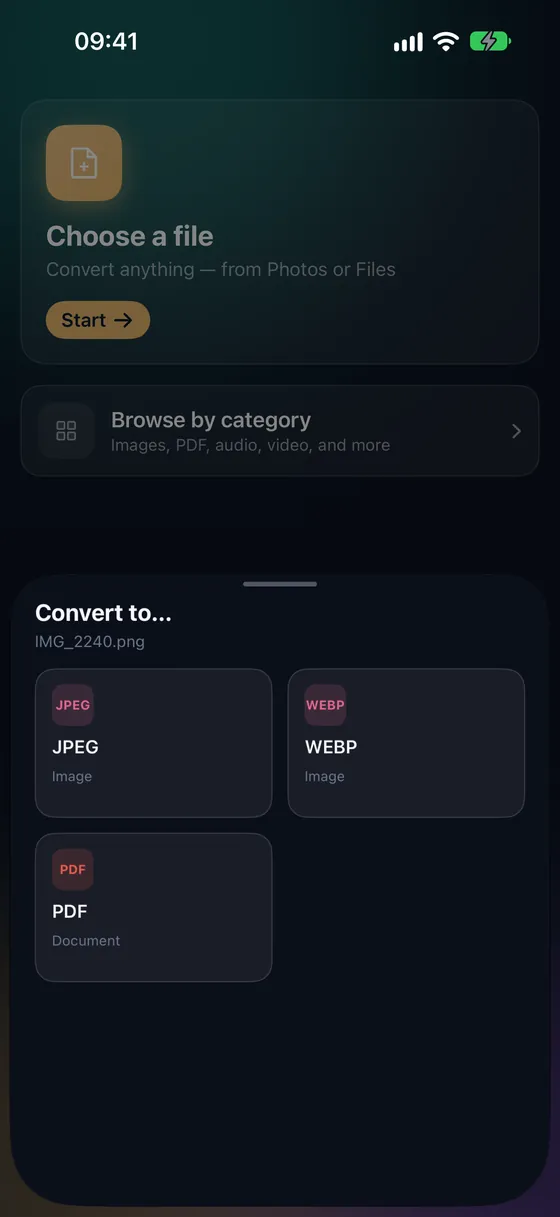
JPEG is perfect for sharing, but every re-save loses a little detail. When you're going to edit, annotate or drop an image into a design tool, PNG is the safer format. Fileroom converts JPEG to PNG on your phone, with nothing uploaded.
Free to download — no account, no uploads.
Why convert JPEG to PNG?
- PNG is lossless — repeated edits and saves won't add artifacts.
- Design and slide tools handle PNG cleanly.
- Some upload forms and app stores require PNG.
- Your photos never leave your device.
How to convert JPEG to PNG
- 01
Choose the image
Open Fileroom, tap Choose a file and pick a JPEG from Photos or Files.
- 02
Tap PNG
Pick PNG from the list of formats. There's no quality slider — PNG keeps every pixel.
- 03
Convert
Tap Convert. The PNG is saved to your library, ready to share or edit.
Frequently asked
- Does converting JPEG to PNG improve quality?
- No — it can't restore detail JPEG already discarded. It stops further loss, which matters if you'll keep editing the image.
- Will the PNG have a transparent background?
- No. JPEG has no transparency, so the PNG keeps the original background. Transparency has to be added in an editor.
- Why is the PNG bigger?
- PNG is lossless and compresses photos less than JPEG. Two to five times larger is normal.
Related conversions
Try Fileroom on your iPhone.
iPhone and iPad on the App Store — every format pair, all on-device. Android coming soon.
Want new features early? Join the TestFlight beta