
Image · On-device
HEIC to PNGon iPhone and iPad.
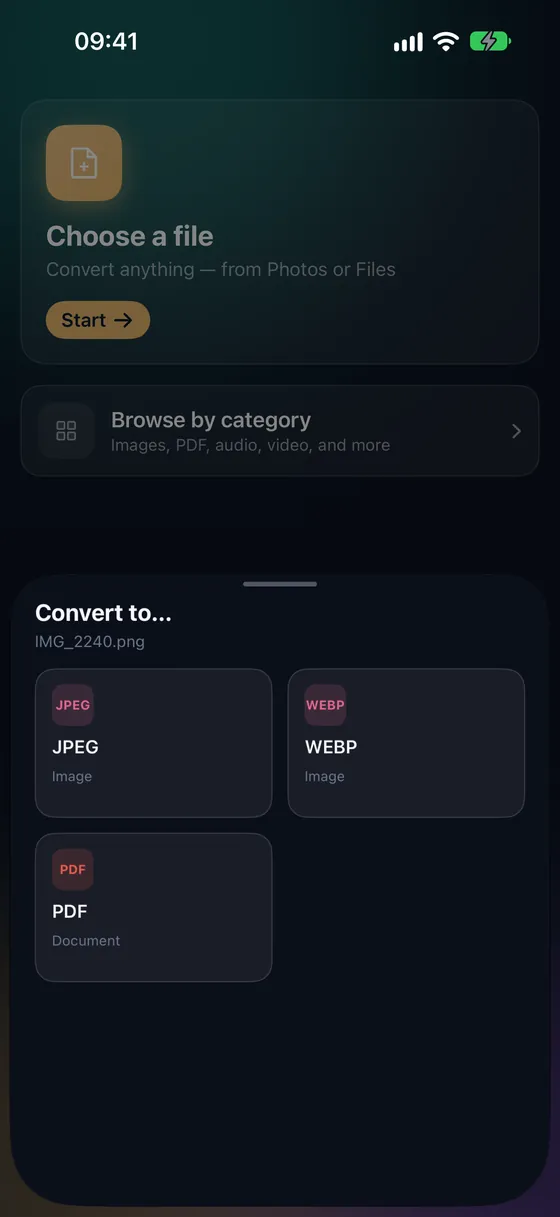
PNG is the right choice when you want lossless quality or plan to keep editing — in design tools, documents and apps that don't accept HEIC. Fileroom converts HEIC to PNG locally on your phone.
Free to download — no account, no uploads.
Why convert HEIC to PNG?
- PNG is lossless — every pixel of the HEIC is kept.
- PNG supports transparency, which JPEG can't.
- Design tools like Figma, Photoshop and Canva prefer PNG.
- The conversion happens on-device, so the photo never leaves your phone.
How to convert HEIC to PNG
- 01
Choose the photo
Open Fileroom, tap Choose a file and pick a HEIC image.
- 02
Tap PNG
Pick PNG from the list of formats. There's no quality setting — PNG is always lossless.
- 03
Convert
Tap Convert. The PNG is saved to your library. Expect it to be larger than the HEIC.
Frequently asked
- Should I pick PNG or JPEG?
- PNG for lossless quality or transparency; JPEG for a smaller file to share or upload. For ordinary photos, JPEG is usually the better choice.
- Why is my PNG so much larger than the HEIC?
- PNG is lossless and compresses far less than HEIC. A 2 MB HEIC often becomes a 10–20 MB PNG — that's expected.
Related conversions
Now on the Mac App Store
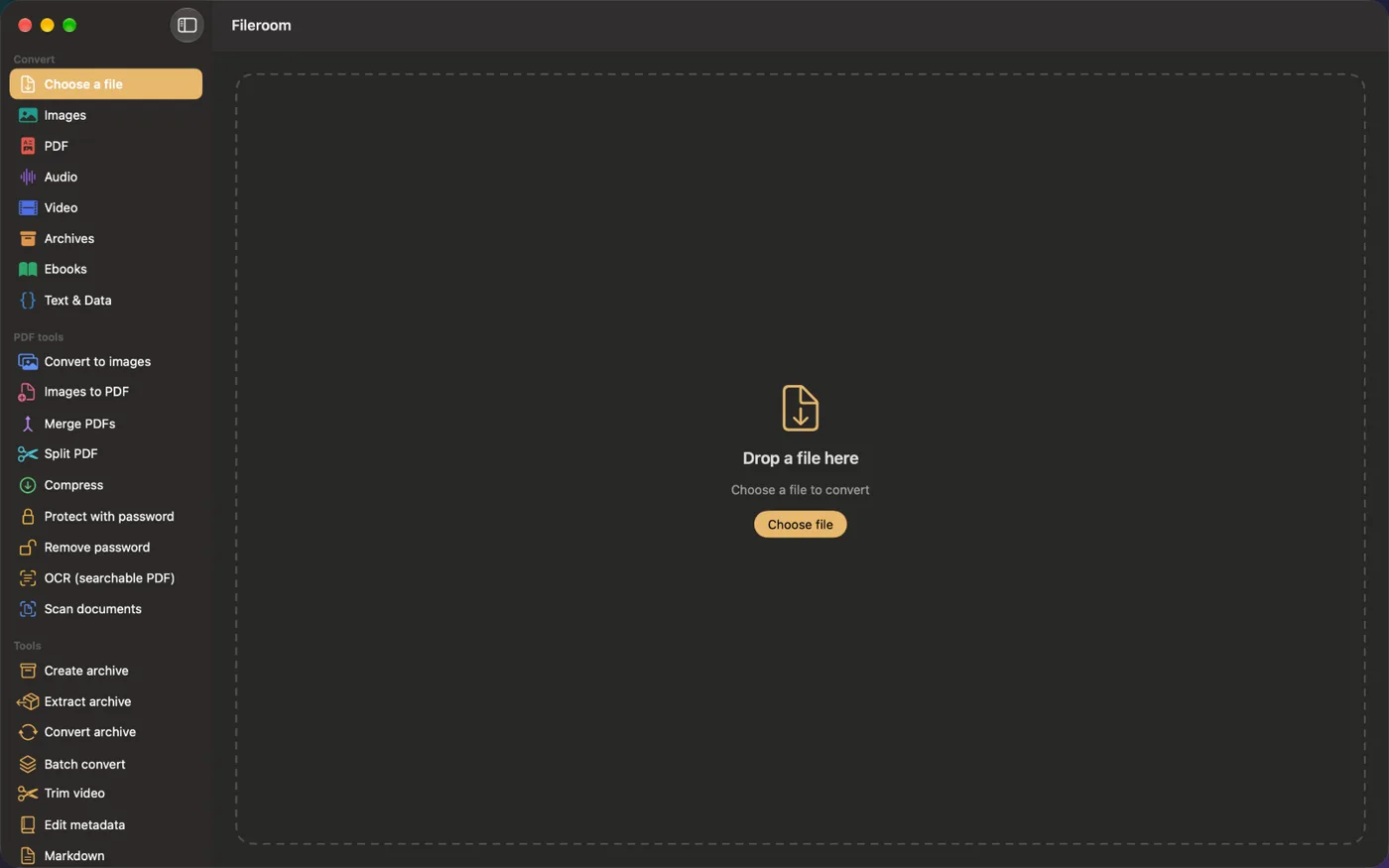
Fileroom, on your Mac.
A native Mac app with every converter and PDF tool — drag files onto the window, batch whole folders, or convert right from Finder.
- Drag & drop onto the window
- Finder Quick Action
- One purchase for iPhone, iPad and Mac
Try Fileroom on your iPhone.
iPhone, iPad and Mac on the App Store — every format pair, all on-device. Android coming soon.
Want new features early? Join the TestFlight beta