
Image · On-device
PNG to JPEGon iPhone and iPad.
PNG is great for screenshots and graphics, but the files are big. Fileroom shrinks them to JPEG with adjustable quality, right on your phone — often 80–90% smaller, with no compression website involved.
Free to download — no account, no uploads.
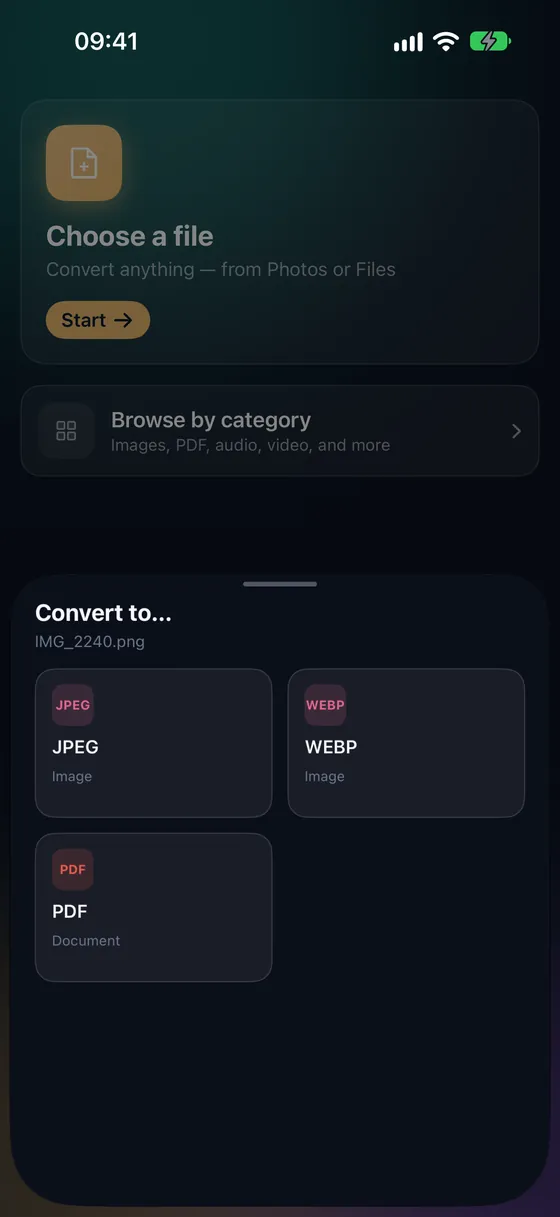
Why convert PNG to JPEG?
- JPEG files are typically many times smaller at the same visual quality.
- Upload forms with size limits accept JPEG where a PNG is too big.
- Photos and most screenshots look just as good as JPEG.
- It all happens on your device.
How to convert PNG to JPEG
- 01
Choose the image
Open Fileroom, tap Choose a file and pick a PNG from Photos or Files.
- 02
Tap JPEG
Pick JPEG and set the quality — around 85 for sharing, 95 to keep more detail.
- 03
Convert
Tap Convert. The result screen shows how much smaller the JPEG is.
Frequently asked
- Will the JPEG lose detail?
- JPEG is lossy, so some fine detail is dropped. At quality 90 or higher you won't notice. For graphics with sharp edges, like icons, PNG may still be better.
- What happens to transparency?
- JPEG doesn't support transparency, so transparent areas become white. Keep PNG if you need transparency.
Related conversions
Now on the Mac App Store
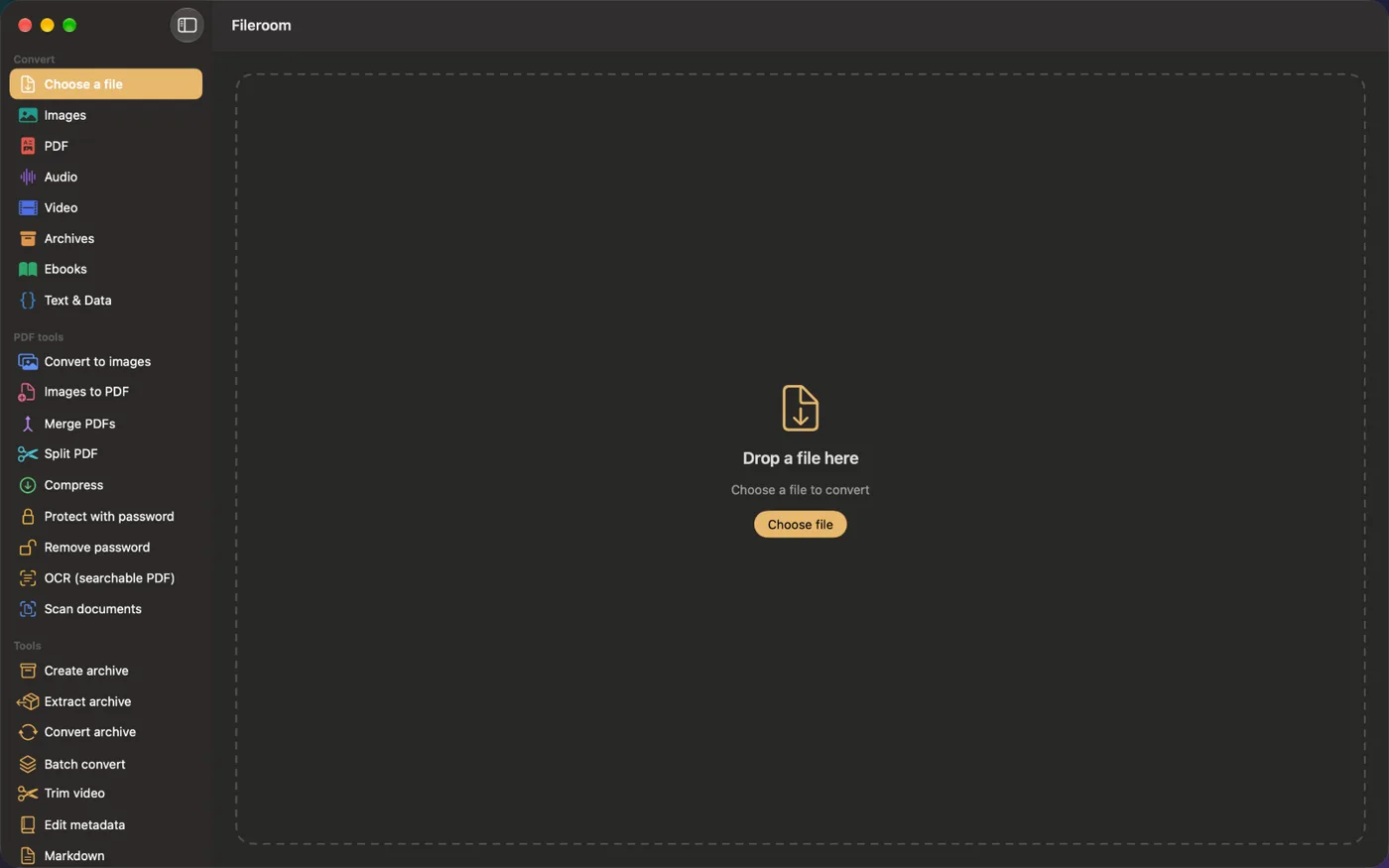
Fileroom, on your Mac.
A native Mac app with every converter and PDF tool — drag files onto the window, batch whole folders, or convert right from Finder.
- Drag & drop onto the window
- Finder Quick Action
- One purchase for iPhone, iPad and Mac
Try Fileroom on your iPhone.
iPhone, iPad and Mac on the App Store — every format pair, all on-device. Android coming soon.
Want new features early? Join the TestFlight beta