
Image · On-device
PNG to WebPon iPhone and iPad.
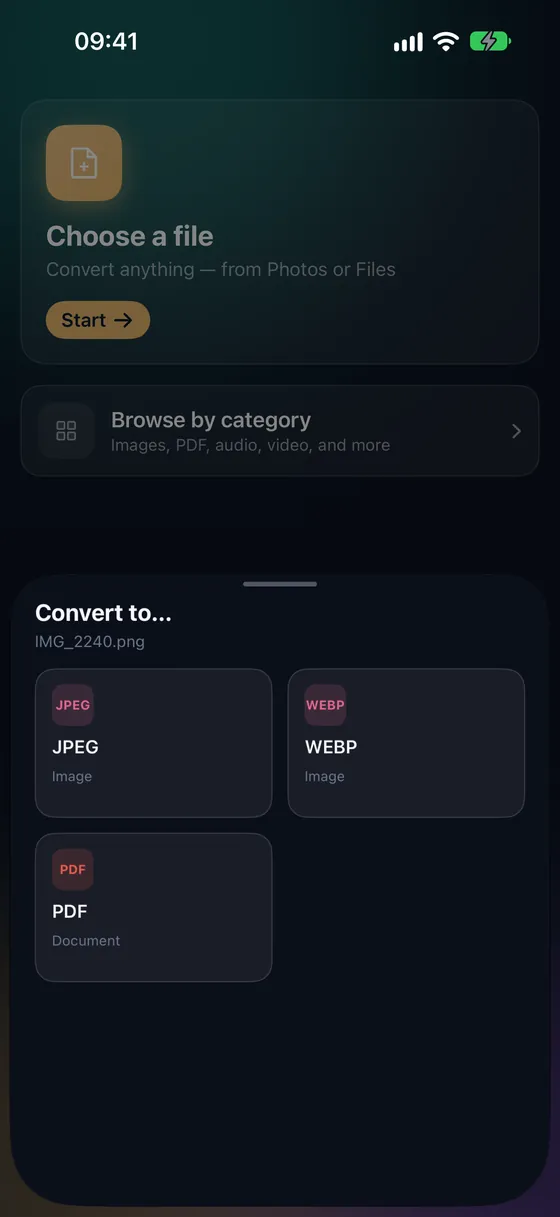
PNG screenshots and graphics are often far bigger than they need to be for the web. WebP keeps them crisp at a fraction of the size. Fileroom converts PNG to WebP locally on your iPhone or iPad.
Free to download — no account, no uploads.
Why convert PNG to WebP?
- Big PNG screenshots become small, fast-loading images.
- Graphics stay sharp for blogs, docs and landing pages.
- Supported by every modern browser and most CMS platforms.
- Screenshots with private info never touch a server.
How to convert PNG to WebP
- 01
Choose the image
Open Fileroom, tap Choose a file and pick a PNG from Photos or Files.
- 02
Tap WebP
Pick WebP and choose a quality. Higher values keep text and edges sharper.
- 03
Convert
Tap Convert. The result screen shows how much smaller the WebP is.
Frequently asked
- Is PNG to WebP lossless?
- Fileroom encodes WebP with a quality setting, so it's lossy — but at high quality, screenshots and graphics look the same while taking far less space.
- Should I use WebP or JPEG for screenshots?
- WebP. It handles text and flat colors better than JPEG, which tends to blur sharp edges.
Related conversions
Try Fileroom on your iPhone.
iPhone and iPad on the App Store — every format pair, all on-device. Android coming soon.
Want new features early? Join the TestFlight beta