
Audio · On-device
AAC to MP3on iPhone and iPad.
AAC sounds great and plays on Apple devices, but some car stereos, older players and upload forms only accept MP3. Fileroom converts AAC to MP3 on your phone.
Free to download — no account, no uploads.
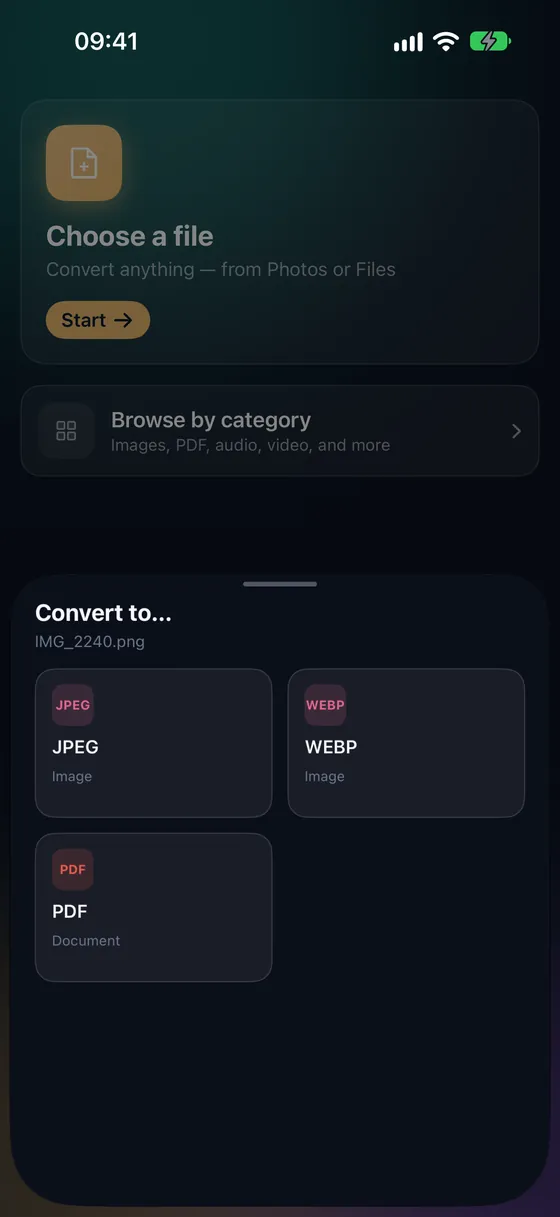
Why convert AAC to MP3?
- MP3 is the most widely supported audio format.
- Works in older car stereos and MP3 players.
- Choose the bitrate for music or speech.
- Your audio never leaves your device.
How to convert AAC to MP3
- 01
Choose the file
Open Fileroom, tap Choose a file and pick the AAC file from Files.
- 02
Tap MP3
Pick MP3 and set the bitrate — match or exceed the original for the best result.
- 03
Convert
Tap Convert. The MP3 is saved to your library.
Frequently asked
- Will I lose quality going from AAC to MP3?
- Both are lossy, so converting adds a little loss. Choose a bitrate at or above the original — 256 kbps is a safe pick for music.
- What about M4A files?
- M4A usually contains AAC audio. See our M4A to MP3 guide — it works the same way.
Related conversions
Try Fileroom on your iPhone.
iPhone and iPad on the App Store — every format pair, all on-device. Android coming soon.
Want new features early? Join the TestFlight beta